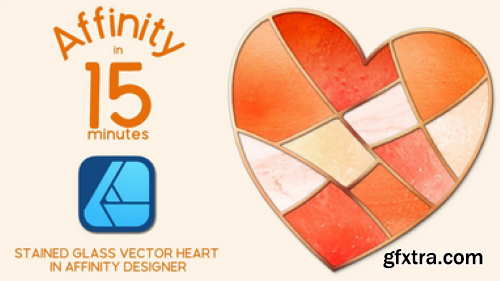
Skillshare - Affinity Designer V2 Stained Glass Vector Heart Shape
Language: English (US)
https://www.skillshare.com/en/classes/affinity-designer-v2-stained-glass-vector-heart-shape/2051313559
Welcome to Affinity in 15, a series where we'll create quick projects in Affinity Designer, Photo or Publisher. In this lesson, I'll show you how to create a fun, stained glass vector heart shape that's perfect for greeting cards, digital stickers, surface pattern design motifs and more. Hi there! I'm Tracey, an artist, designer and Affinity pro. I love learning the ins and outs of the Affinity suite so that I can make the tools do what I need them to do (even if it's not always what they were intended to do). In this series of classes, complementing my longer form classes here on Skillshare, I'll share everything I know about the three apps, both the desktop and iPad versions, in bite size classes, so that you walk away with a quick, fun project and tons of knowledge so you can work efficiently, and effectively, on your own.
- The two ways you can use the Knife tool, including how to cut a shape up in to multiple parts. I'll show you how to drill down in to smaller selections so that you can slice exactly what you want, to get the shapes you want quickly.
- How to use the Gradient tool to add solids, gradients and bitmap textures. This allows you to add fills from the Stock Studio, Assets panel and your external files, quickly and efficiently.
- How to create and use vector clipping masks. These will allow you to use duplicates of your original shape to clip away anything outside the bounds of your original shape, making it a perfect way to mask groups of shapes as well as vectors where you need to control the opacity of your textures.
- How to use the Appearance Panel to add multiple fills. This studio makes it really easy to add multiple, different, fills, including bitmaps, and give each fill it's own blend mode adjustment.
- How to add drop shadows and 3D effects to groups of shapes. We'll also cover things you want to consider when adding effects so that your objects look more realistic.
- How to break up a perfect line with vector brushes and Sculpt mode on the Pencil tool. When you're aiming for realism, sometimes, the slightest adjustment to a perfect line can make all the difference. I'll show you how to use the Pencil tool and vector brushes to break up the soldering lines on the stained glass, giving them a more realistic effect.
By the end of class, you'll have a handful of tools in your creative Affinity arsenal that will help you create designs well beyond the simple heart shape we're creating in class. Don't want to create a heart shape? No problem! The steps I show you can help you create any stained glass design in Affinity Designer V2.