


GraphicRiver - Dark Silver Photoshop Action 20439948
ATN


GraphicRiver - Realistic Cartoon Painting 20442864
ATN

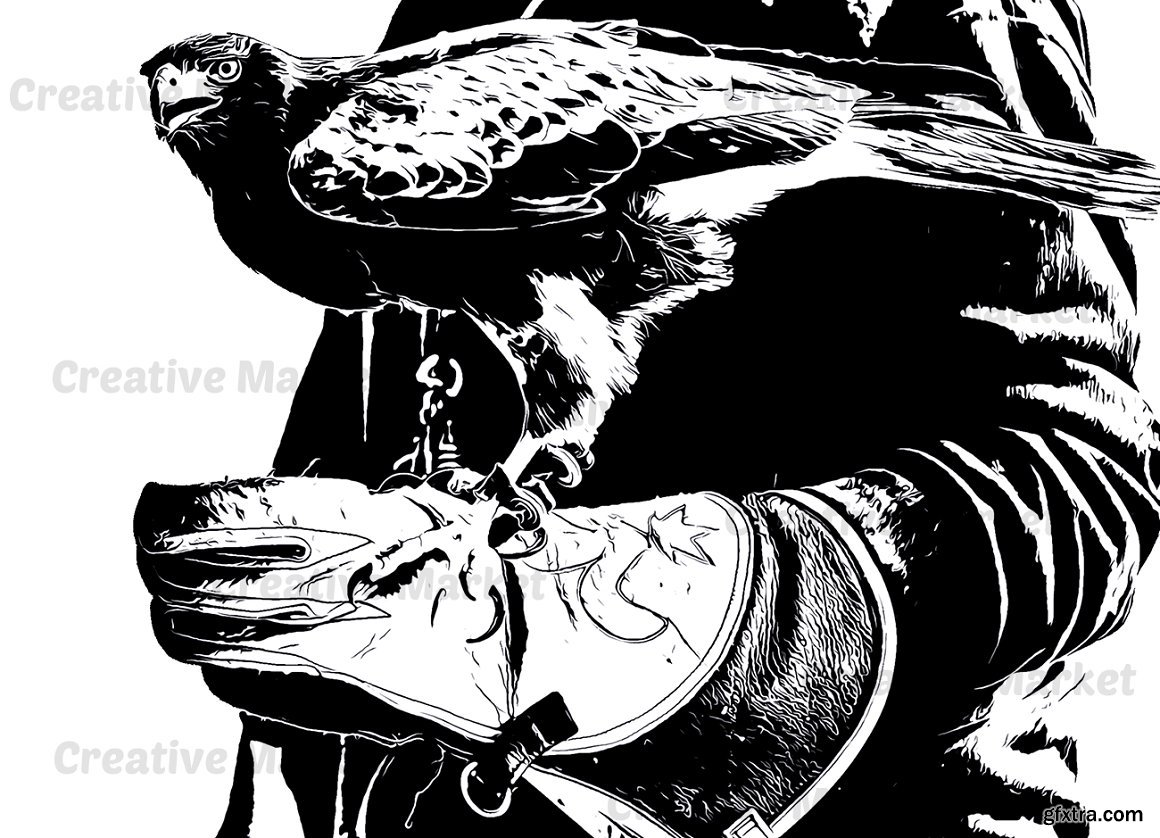
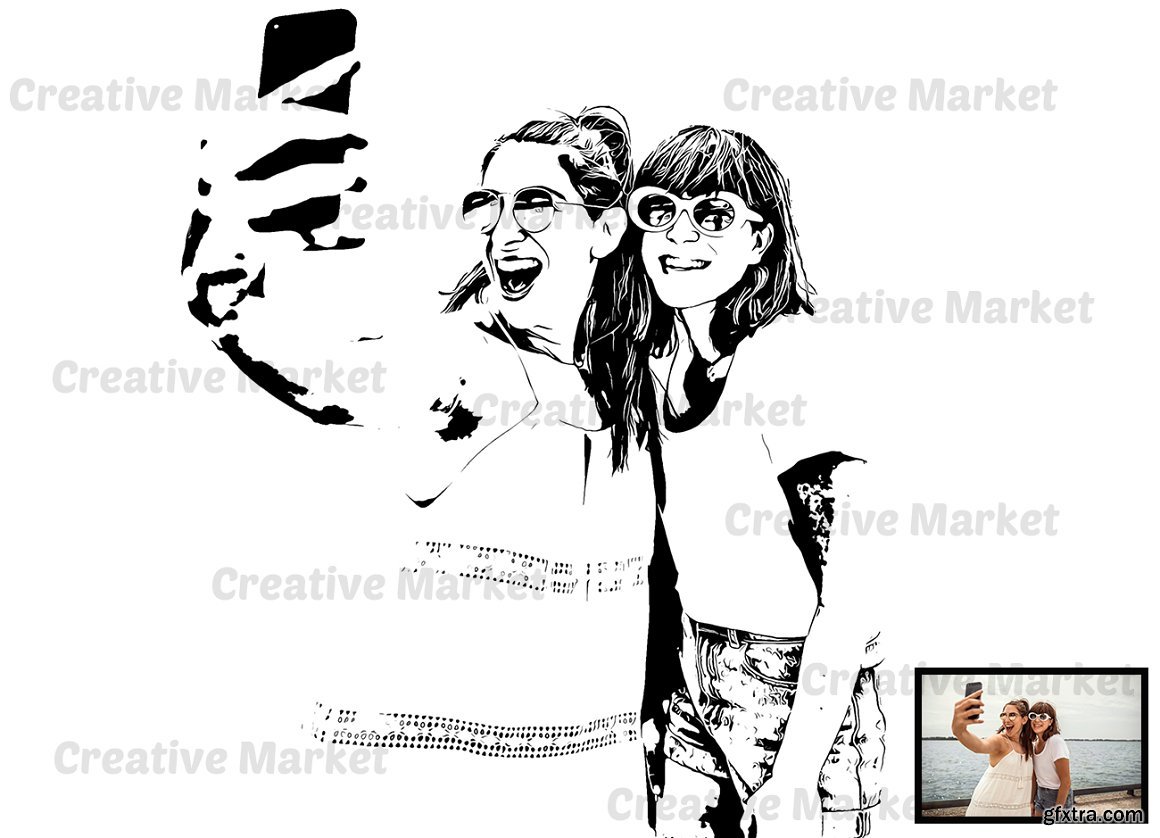

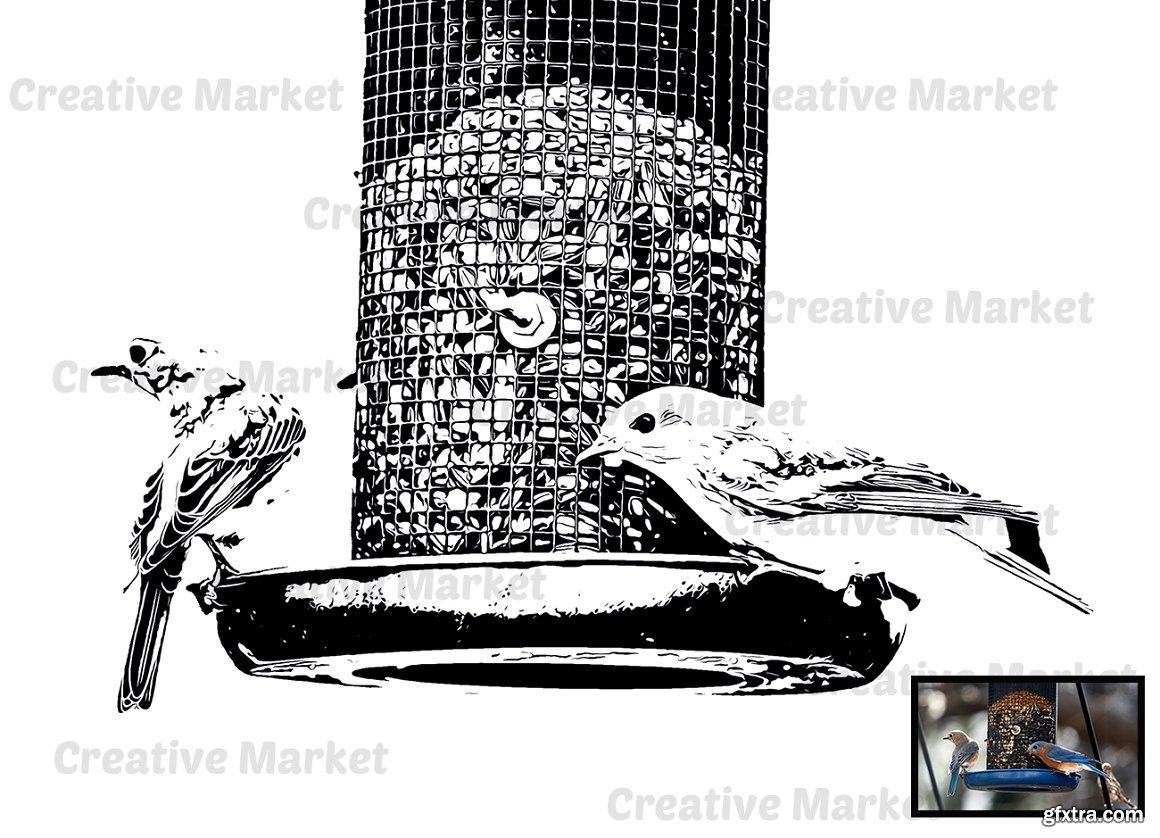
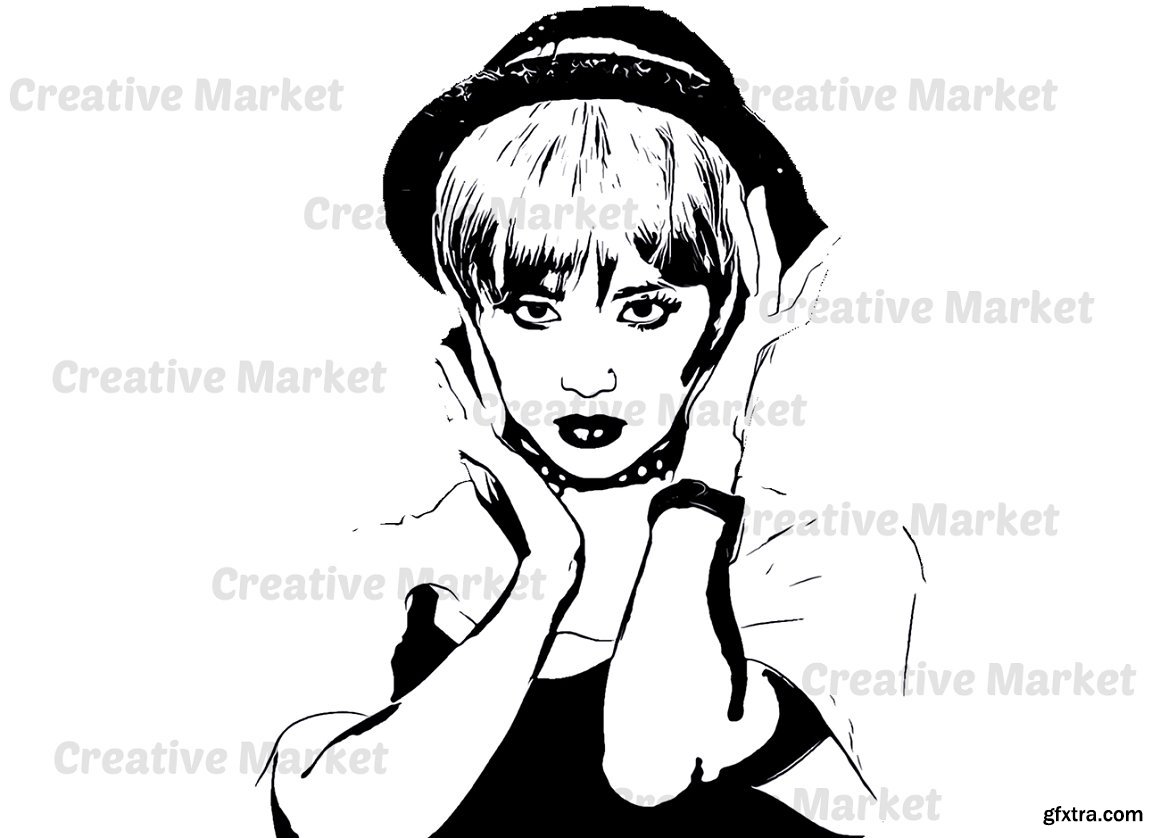

CreativeMarket - Sketch Maker Photoshop Action 6516725
ATN

GraphicRiver - Impressionist Painting Photoshop Action 20448975
ABR, Photoshop PAT, Photoshop ATN

GraphicRiver - Dust Storm Photoshop Action 20476768
ABR, Photoshop ATN
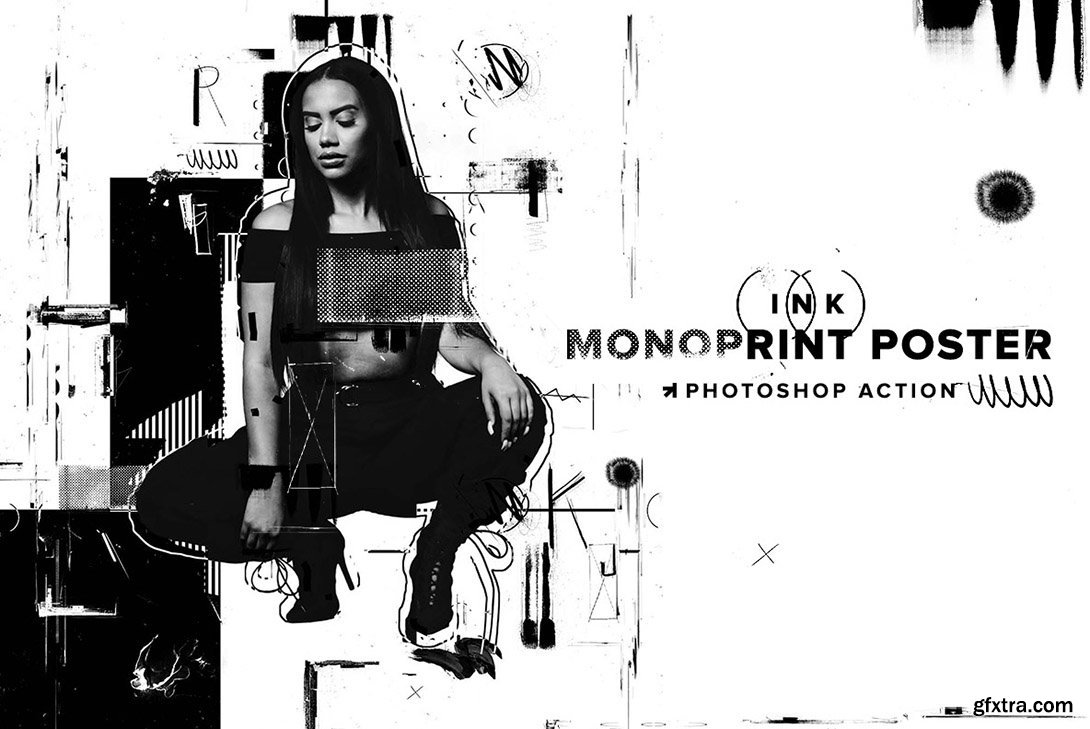
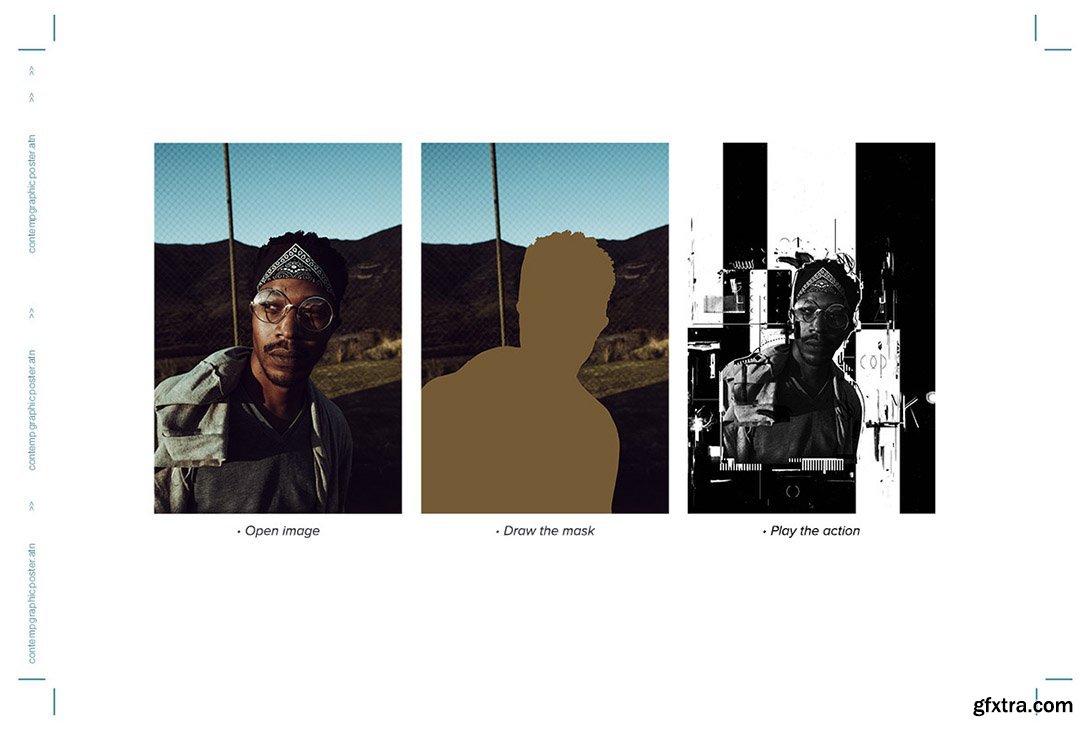
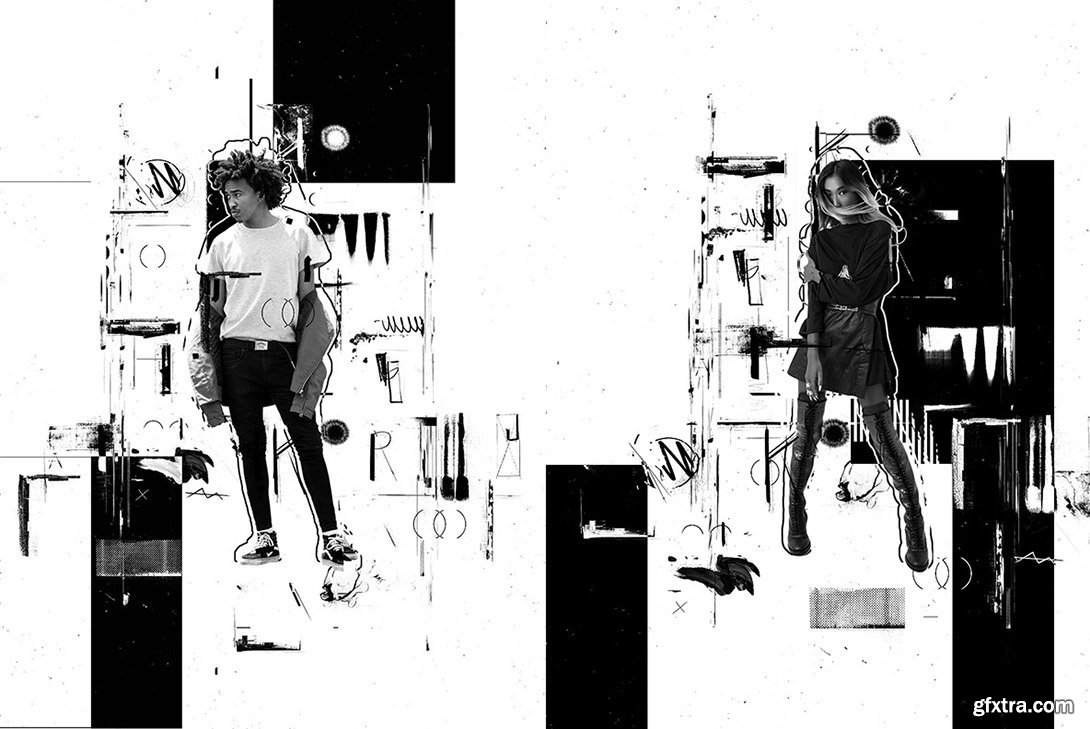
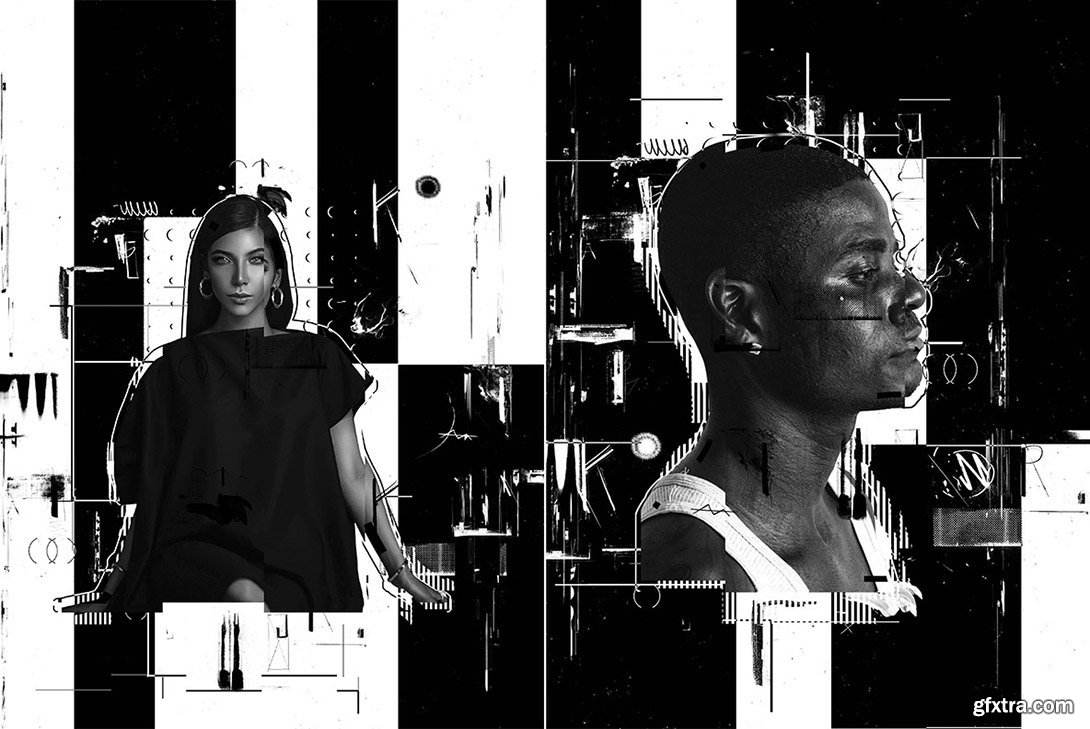
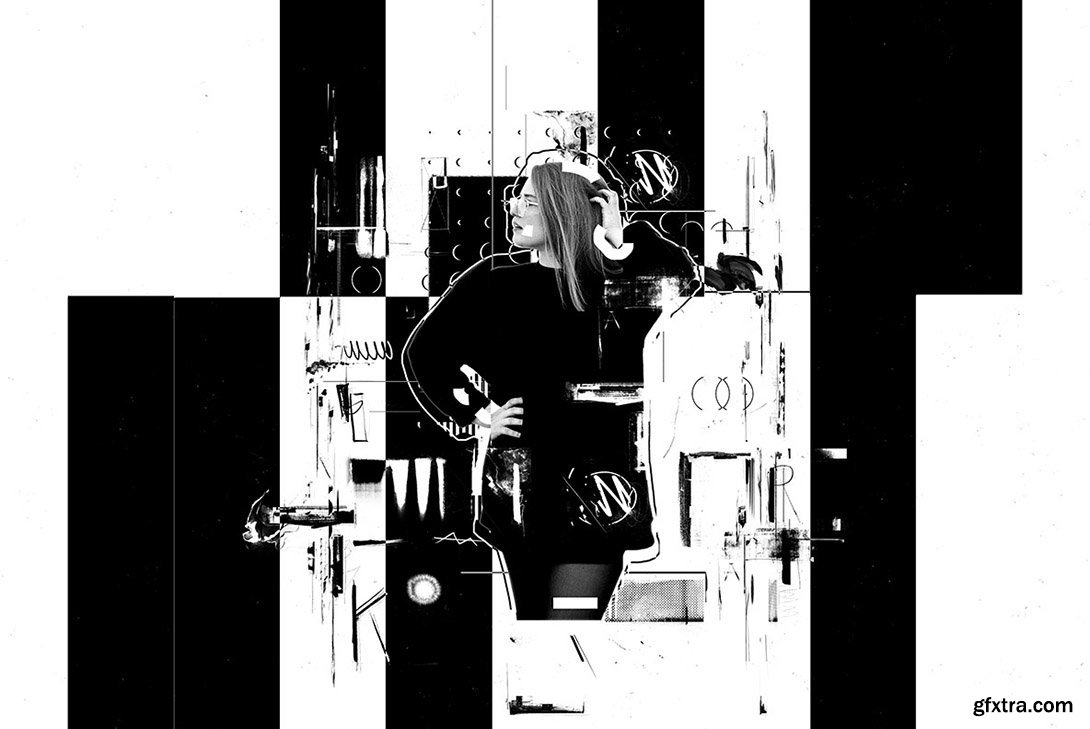
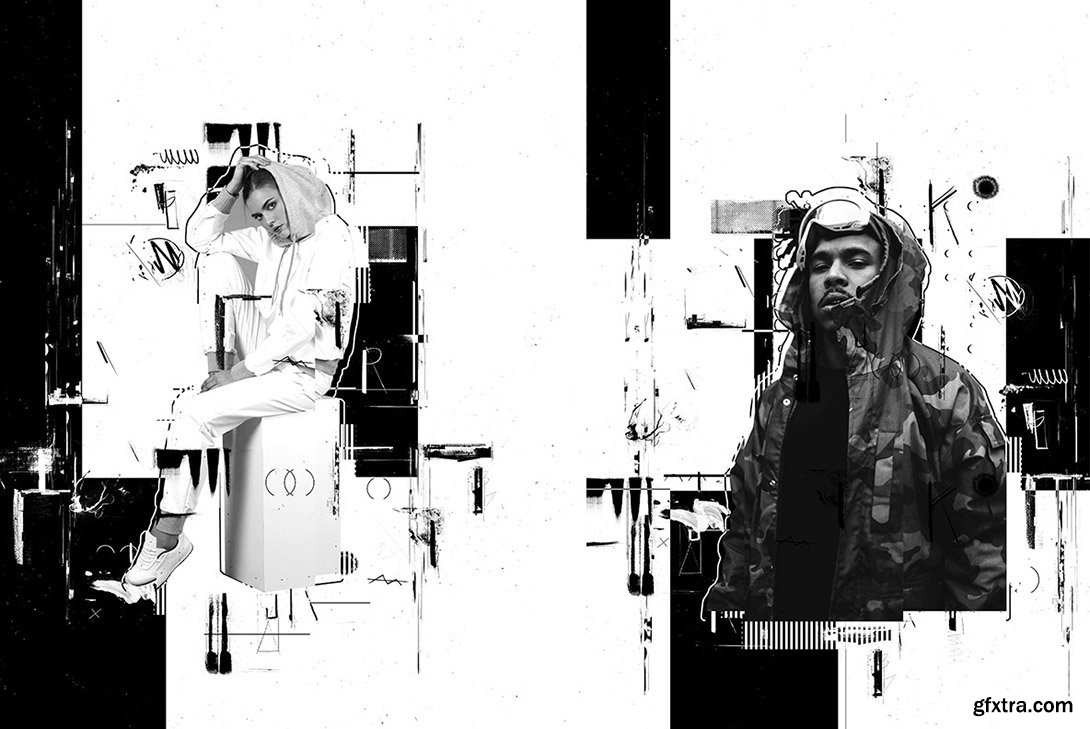
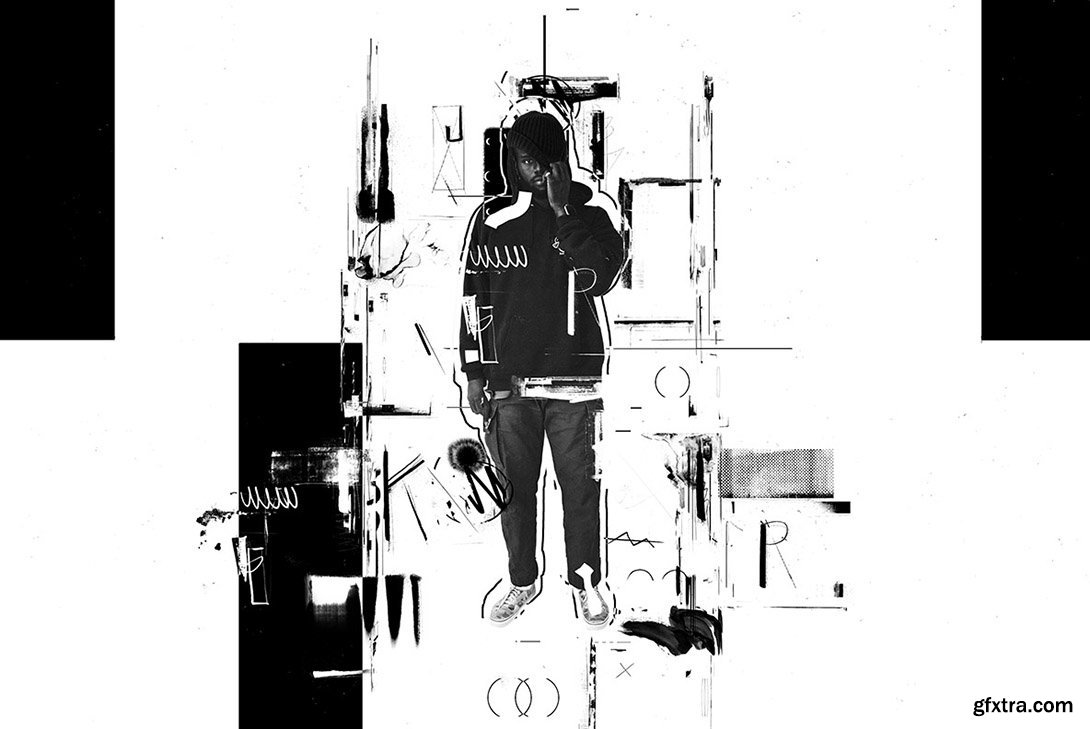
CreativeMarket - Ink Monoprint Poster PS Action 6357795
ATN PAT

GraphicRiver - Dust Photoshop Action 20540652
PAT, ATN


GraphicRiver - MixedArt - Photoshop Action 20560997
ABR, Photoshop ATN

GraphicRiver - Vector Creator Photoshop Action 20575512
ATN

GraphicRiver - Wet Glass Photoshop Action 20614835
ATN

GraphicRiver - Sharpen Golden Oil Paint 20618619
ATN

GraphicRiver - Sport Activity Brochure 3 20649464
PSD
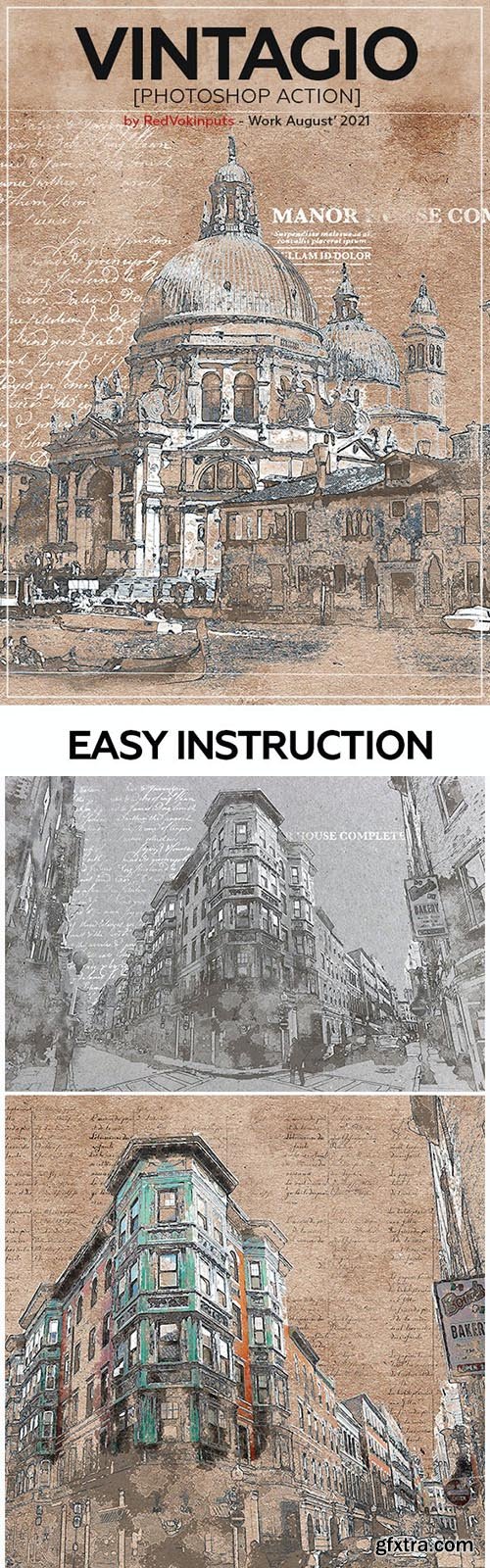
GraphicRiver - Vintagio Photoshop Action 33401864
ABR, Photoshop PAT, Photoshop ATN

GraphicRiver - Watercolor Photoshop Action 33396288
ABR, Photoshop PAT, Photoshop ATN
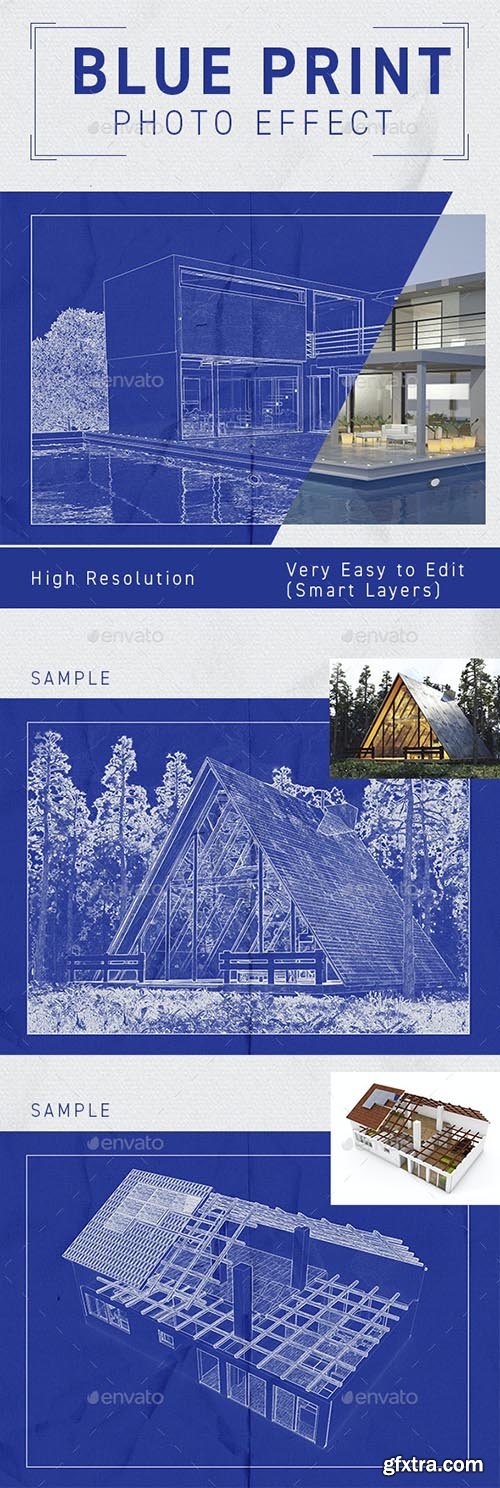
GraphicRiver - Architect Blueprint Photo Effect 33249812
PSD


Save hours of creative work by using this professional photoshop action to create a Precious Colors effect on your photos. Detailed and creative result with a single click action!
Features
- Tested and working on Photoshop CS5, CS6, and CC (English Version). You can change Photoshop's language by following the instructions here https://www.youtube.com/results?search_query=Change+language+of+Photoshop+to+English
- Tested on 60 different photos to ensure the effect's adaptability
- Recommended photo size is between 1500-3000px.
- Preview photos are not included in the download.
- One click action.
Action Installation
- Open Photoshop and open the Actions panel, if you cannot see it by default on the right side of the Photoshop interface, click "Window Actions" to show it.
- On the Actions window, click the coner icon on the top right to show a drop-down menu, then click "Load Actions...". Locate the "Precious Colors.atn" on your filesystem.
- "Precious Colors.atn" wil now appear on your Actions panel.
How to use the Action
- Open the photo you wish to apply the action on.
- Make sure that the photo layer is locked and set as "Background". Newly opened photos are set as "Background" and locked as default. If the opened photo is not, set it by clicking "Layer New Background from Layer".
- Create a new layer on top of of the "Background layer", named it "brush". All letters must be lowercase for the action to work properly.
- Select the "brush" layer, then brush the areas of the image you want the effect to be applied.
- For the final step, expand the "Precious Colors" set inside the Actions panel and click the play button.

GraphicRiver - Electric Energy Photoshop Action 20845833
ATN

GraphicRiver - Rainy Day Photoshop Action CS4+ 20873383
ATN

GraphicRiver - Technological Sketch Photoshop Action V2 20877005
ABR, PAT, ATN

GraphicRiver - 5 Professional Winter Actions + Snow Flakes Action 21058724
ATN


GraphicRiver - Deep Dark Photoshop Action 21104062
ATN

126,000 Royalty-Free 3D Model

Udemy Türkçe


Top Rated News
- CreativeLive Tutorial Collections
- Fasttracktutorials Course
- Chaos Cosmos Library
- MRMockup - Mockup Bundle
- Finding North Photography
- Sean Archer
- John Gress Photography
- Motion Science
- AwTeaches
- Learn Squared
- PhotoWhoa
- Houdini-Course
- Photigy
- August Dering Photography
- StudioGuti
- Creatoom
- Creature Art Teacher
- Creator Foundry
- Patreon Collections
- Udemy - Turkce
- BigFilms
- Jerry Ghionis
- ACIDBITE
- BigMediumSmall
- Globe Plants
- Unleashed Education
- The School of Photography
- Visual Education
- LeartesStudios - Cosmos
- Fxphd
- All Veer Fancy Collection!
- All OJO Images
- All ZZVe Vectors
- CGTrader 1 CGTrader 2



















